
AVATARYA STUDIO
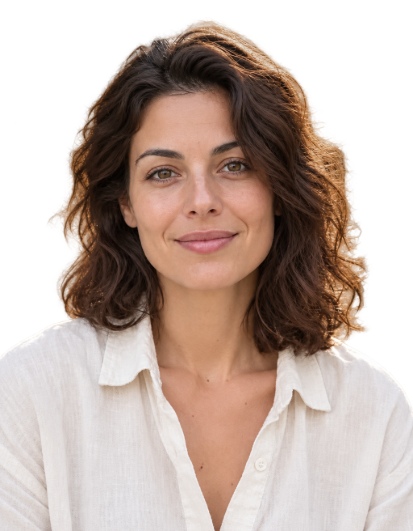
편집 전 → 편집 후새로운 이미지
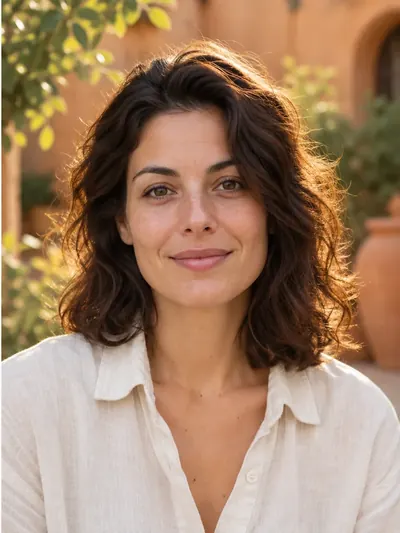
이 결과에 사용된 설정
- 모델
- Avatarya Studio 2
- 이미지 품질
- 표준
자르기, 흰색 채우기, 의상 오버레이, 인쇄 레이아웃은 브라우저에서 실행됩니다. 유료 AI 처리는 인물 컷아웃에만 사용됩니다.
자동 지시문
Isolate only the main person in the reference photo. Keep their visible body, hair, clothing and worn accessories. Remove every other person and every non-person object, including chairs, armchairs, seats, backrests, headrests, armrests, furniture, cushions, equipment and objects held in the hands. A chair or other object must be removed even when the person is sitting on it, leaning against it, touching it, or when it closely follows the outline of their head, hair, shoulders or clothing. Do not include any part of a chair or other surrounding object in the person cutout. Make all areas outside the person and all visible gaps between their body parts fully transparent. Preserve the exact identity, facial features, expression, skin texture, hair, clothing, body pose and natural outlines. Do not beautify, retouch or regenerate the face, and do not invent hidden or cropped body parts. Keep the original framing and orientation. Return only the person on a fully transparent background, with clean natural edges and no shadows or solid background.이 설정은 게시된 예시를 설명합니다. 새로 실행하면 다른 이미지가 생성될 수 있습니다.
인물사진 불러오기
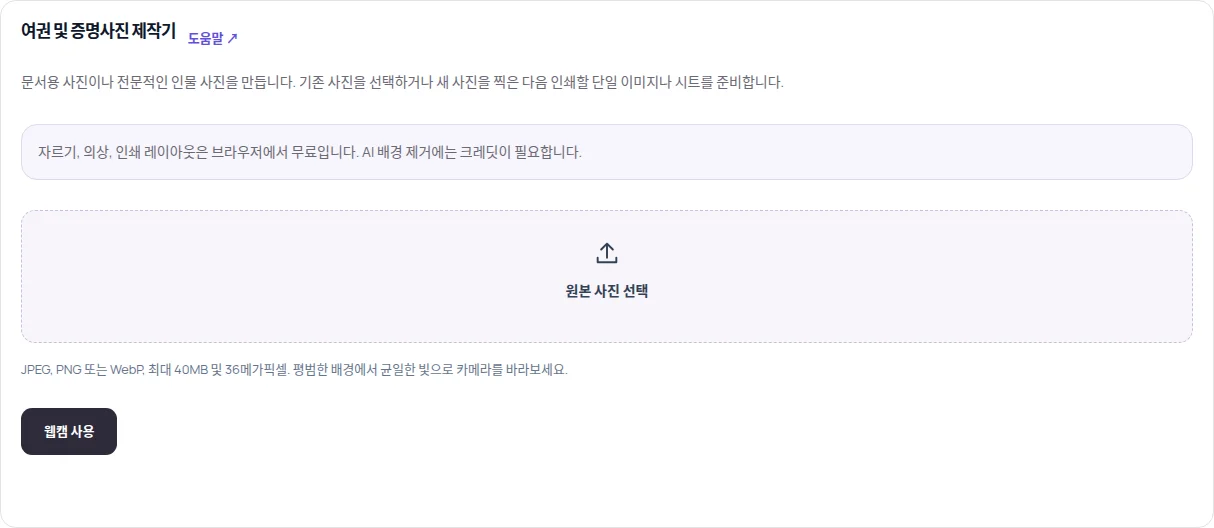
문서 사진을 열고 최대 40 MB, 36 MP의 JPEG, PNG 또는 WebP를 선택하거나 웹캠으로 촬영하세요. 머리, 목, 어깨 전체가 보이게 하세요.
형식과 품질 선택
문서 크기를 선택하고 얼굴을 정렬하세요. 로그인한 뒤 배경 제거 품질로 초안, 표준, 고품질 중 하나를 선택하세요. 각각의 설정 비용은 5, 10, 30 크레딧입니다.
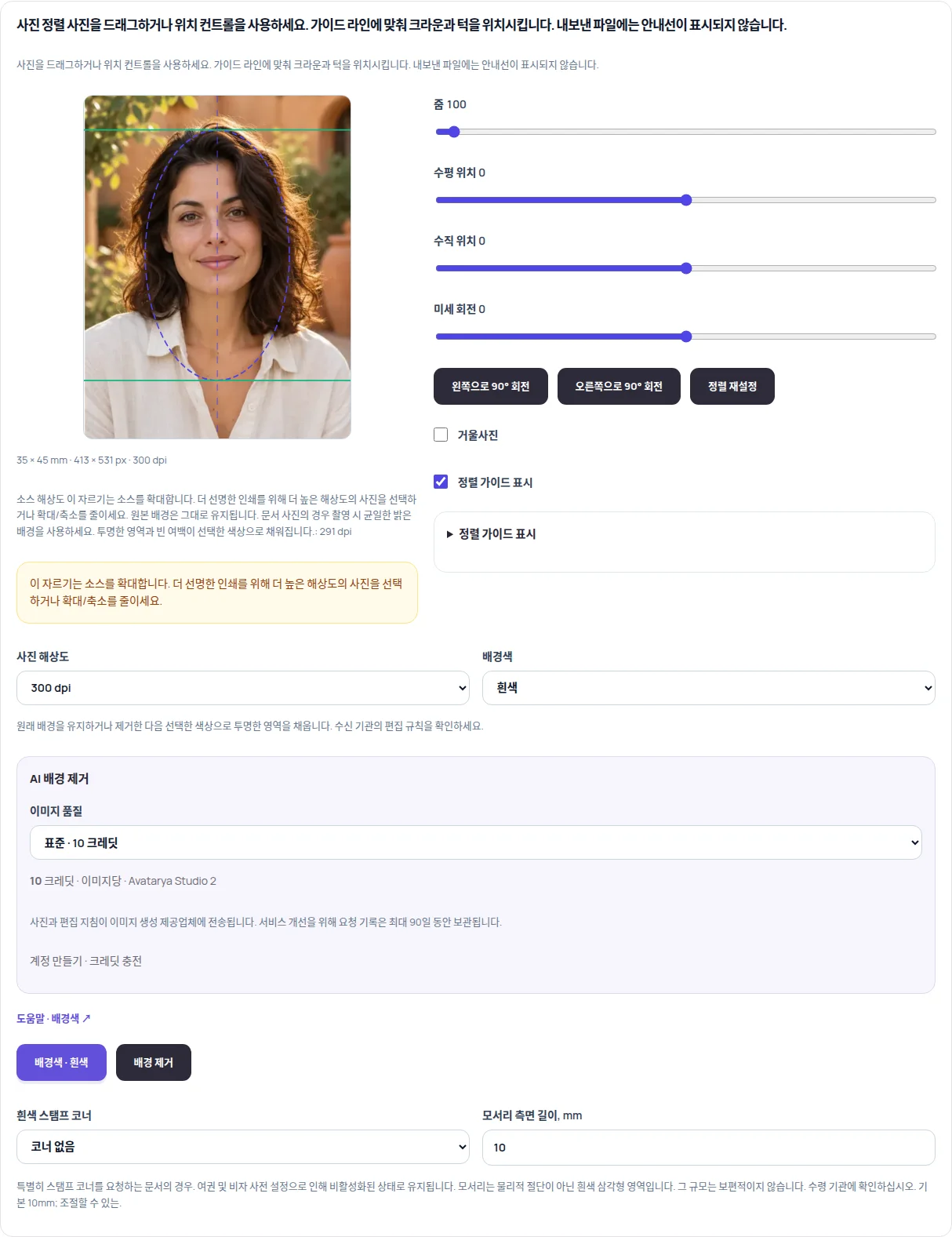
사람 뒤 배경을 흰색으로 실행
전용 동작 버튼을 누르세요. 주요 인물, 의상, 착용한 액세서리만 남기고 배경, 의자 및 다른 물체를 제거하도록 지시와 함께 축소본이 처리용으로 전송됩니다. 손님 무료 시도는 사용되지 않습니다.
확인 후 내보내기
머리카락, 얼굴, 어깨를 확인하세요. 편집기는 투명한 영역을 흰색으로 채웁니다. 같은 사진에 대해 추가 유료 제거 요청 없이 회색이나 파란색을 선택할 수 있습니다. 준비 후 JPG 또는 PNG를 다운로드하세요.
실용적인 팁
색상 목록에서 흰색만 선택한다고 불투명한 배경이 없어지지는 않습니다. 처리된 원본과 오려내기는 최대 90일 동안 개인 기록에 보관되며, 자르기와 색상 변경은 브라우저에서 실행됩니다.
AVATARYA.APP
서비스 열기 ↗